
This is a step-by-step guide to PW Booking (free) and PW Booking Pro. It follows the order in which you set things up. Menu names are given as they appear in WordPress in English.
1. Get started
What you need
- A WordPress website running WordPress 6.5 or later and PHP 7.4 or later.
- Your website must be able to send email. Confirmations are sent with WordPress’ own mail function. If emails don’t arrive, install an SMTP plugin, e.g. WP Mail SMTP, and connect it to your email account.
- For Pro: a PW Booking Pro licence (the zip file from your purchase email).
Install PW Booking (free)
- Go to Plugins → Add New Plugin.
- Search for PW Booking, click Install Now and then Activate.
- A new menu item, Booking, appears on the left.
Install PW Booking Pro
- Go to Plugins → Add New Plugin → Upload Plugin.
- Choose the zip file pw-booking-pro-x.x.x.zip, click Install Now and then Activate.
- The free PW Booking must be active, otherwise Pro shows a notice at the top of the dashboard.
- Updating: upload the new zip file the same way and choose Replace current with uploaded. Your classes, bookings and settings are kept.
2. PW Booking – appointment booking
The free version is for hair salons, therapists, massage therapists and others where clients book an appointment for a service.
Step 1: Settings
Go to Booking → Settings and fill in:
- Opening hours for each weekday. Choose Open for online booking, By appointment (not shown online, but you can add appointments yourself) or Closed.
- Closed days and holidays, one date per line.
- Time interval (how often an appointment can start, e.g. every 15 minutes) and the break between bookings.
- Notice: how many hours before an appointment clients can book at the latest, and how far ahead they can book.
- Cancellation deadline in hours. Clients can cancel via the link in the email until the deadline.
- Notification email, phone and address shown in the client’s confirmation.
- Accent colour and optionally a logo for the booking form, plus the consent text.
Step 2: Services and add-ons
- Go to Booking → Services.
- Add your services with name, duration in minutes, price and a short description.
- Add add-ons, e.g. “Hair treatment +15 min”. Clients can add them on top of a service.
- If you have a list from another system, you can import services in one go.

Step 3: Add the booking form to a page
- Create or edit a page, e.g. “Book now”.
- Insert the shortcode
[pw_booking]. In Elementor, use the Shortcode widget; in the block editor, the Shortcode block. - Publish the page and try a booking.
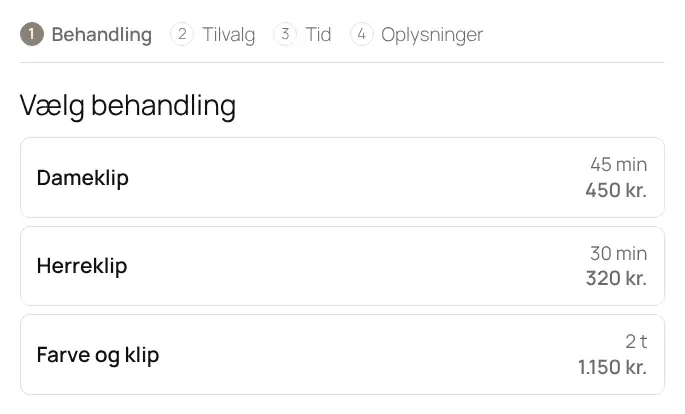
You can customise the form with attributes, e.g. [pw_booking accent="#8a8177" font="Playfair Display" services="1,2,3"]. See the shortcode overview.
Step 4: Price list
Insert [pw_booking_prices] on a page to show a price list built from your services and add-ons. Change a price under Services, and the price list updates automatically.
Step 5: The “My bookings” page
Create a page with [pw_booking_my_bookings]. Here clients can see and cancel their bookings. Select the page under Booking → Settings so the link is included in the confirmation email.
Step 6: Client list
- Under Booking → Customers, clients are added automatically when they book.
- Here you see contact details, history and marketing consent, and you can add a note.
- You can import clients from a CSV export, e.g. from Planway. Duplicates are merged.
- If a client asks to be deleted, delete them here. This also removes their details from their bookings.
Step 7: Bookings day to day
- Booking → Bookings shows all upcoming appointments.
- You can add a booking yourself, e.g. when a client calls, and choose whether the client gets a confirmation.
- If you cancel an appointment, the client gets an email.
3. PW Booking Pro – class schedule and punch cards
Pro is for yoga, Pilates and fitness studios where clients book a spot in a class. Everything is under Booking in the menu.
Step 1: Create classes
- Go to Booking → Classes.
- Choose a type:
- Weekly class runs every week on the same day and time.
- Workshop / event takes place on one specific date.
- Course runs weekly between a start and an end date. Clients sign up for all sessions at once and pay one total price.
- Fill in name, description, instructor, room, weekday or date, start time, duration and number of spots.
- Price is the drop-in price per session, or the total price for a course or workshop.
- Choose payment:
- Free booking: clients book and pay at the studio.
- Punch card or membership: clients need a valid card. If the class has a price and Stripe is set up, clients can pay drop-in online instead.
- Pay the price online: clients pay right away via Stripe. Suits workshops and courses.
- Use Runs from / to if a weekly class only runs for a period, e.g. a season.
- Untick Active to hide a class without deleting it.

Closed days from the free PW Booking also apply to classes.
Step 2: Add the class schedule to a page
- Create a page, e.g. “Schedule”, and insert
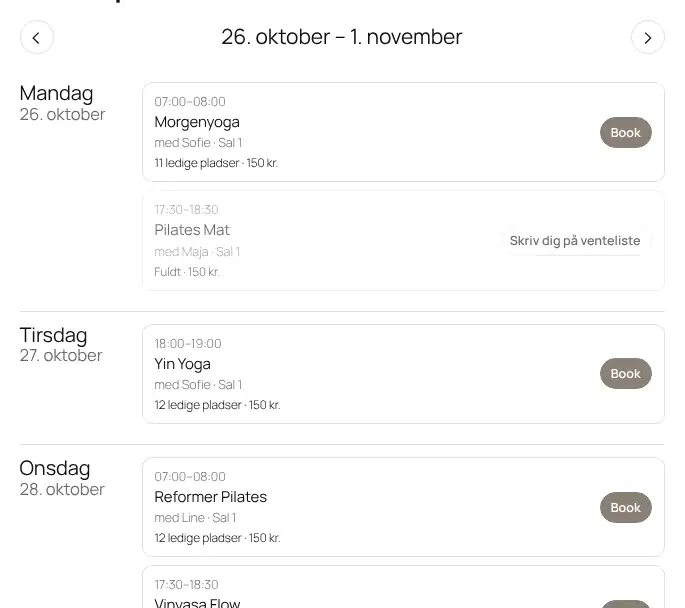
[pw_booking_schedule]. - Clients see this week’s classes with available spots and can browse between weeks. On mobile, classes are shown as a list.
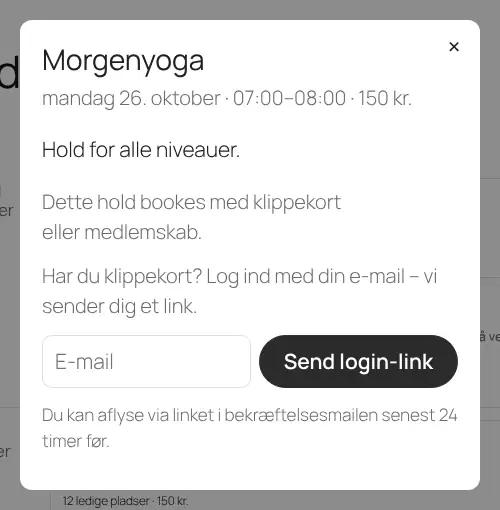
- The client clicks Book, enters name, email and phone, and gets a confirmation with a cancellation link.
Step 3: Waiting list
The waiting list is on by default under Booking → Pro settings.
- If a class is full, clients can click Join the waiting list.
- When someone cancels, the first person on the list gets the spot automatically plus an email, and an SMS if enabled. If the class uses punch cards, a class is deducted automatically.
- If the spot requires a payment the client can’t make automatically, e.g. the client has no punch card, everyone on the list instead gets an email saying a spot is free. Then it’s first come, first served.
Step 4: Punch cards and memberships
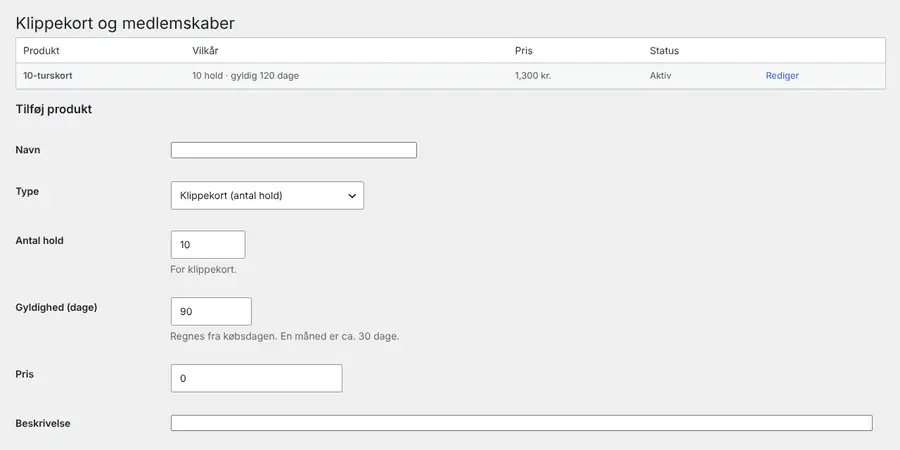
- Go to Booking → Punch cards and create your products:
- A punch card has a number of classes and a validity in days, e.g. 10 classes in 120 days.
- A membership gives unlimited access for a period, e.g. 30 days.
- When a client pays at the studio, use Give a customer a punch card. The client is created automatically if the email is new.
- Under Customers’ punch cards and memberships you can look up a client, change the number of classes, extend the card or cancel it.
- When a client books a class, one class is deducted. If they cancel before the deadline, it’s returned. A membership uses no classes.
Step 5: The client page
- Create a page, e.g. “My account”, and insert
[pw_booking_account]. - Clients sign in with their email and get a login link by email, so there’s no password to remember. The link works for 30 minutes.
- On the client page, clients can:
- see and cancel their bookings,
- see their remaining classes and how long the card is valid,
- buy new punch cards and memberships, once Stripe is set up.
- When signed in, clients can book with their punch card directly from the schedule.
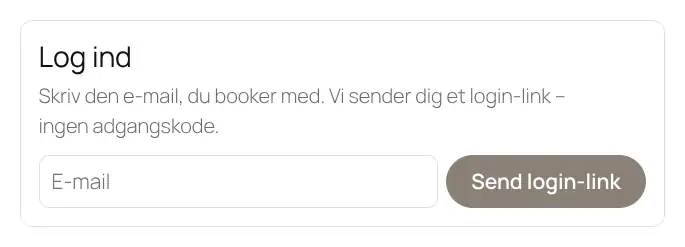
Pro finds the pages with [pw_booking_schedule] and [pw_booking_account] by itself the first time they’re shown. You can also choose them under Booking → Pro settings → Pages.
Step 6: Price list
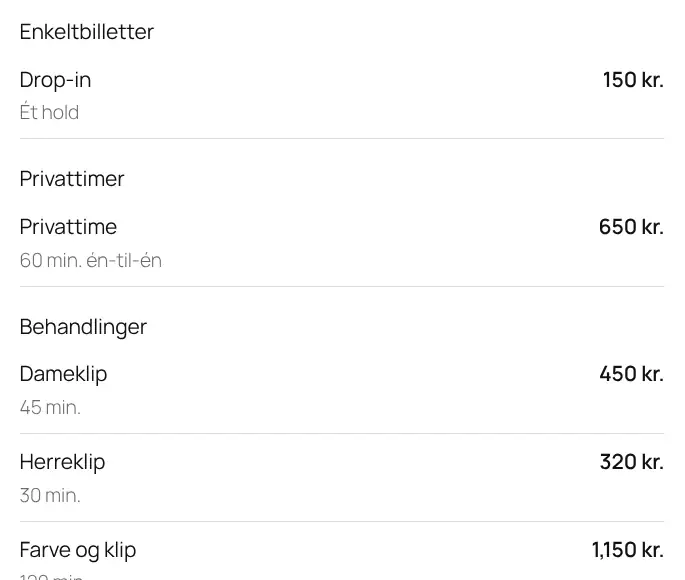
- Go to Booking → Price list and enter your prices with category, name, description and price. The price is free text, e.g. “DKK 150” or “from DKK 499”.
- Insert
[pw_booking_prices]on a page. It shows your price items, your services and your punch cards with a Buy button. - Show only some parts with
[pw_booking_prices show="items,passes"], or one category with[pw_booking_prices category="Private sessions"].
Step 7: Instructors
- Create the instructor as a user under Users → Add New User with the role Instructor.
- Select the user in the Instructor field on the class.
- When the instructor logs in, they only see the My classes menu item with attendee lists and check-in for their own classes.
Step 8: Move data from your old system
Coming from YOGO, Zenamu, Planway, Gecko Booking or another system? Move your data under Booking → Import.
- Export a CSV file from the old system. Save an Excel file as CSV (UTF-8). If the system can’t export, download a template on the import page and fill it in.
- Import in this order: first classes, then punch cards and memberships, and finally upcoming class bookings.
- Choose what you’re importing and upload the file. The plugin works out which columns hold name, email, classes left, expiry date etc. Correct the choice if something is wrong.
- Click Check the file. You see the first rows and which rows will be skipped and why, e.g. expired cards or classes that don’t exist.
- Click Import. Clients are created automatically, and rows that already exist are not created twice.
Coming from YOGO? YOGO has no export button. Write to YOGO support and ask for an Excel or CSV file with clients, active punch cards and upcoming bookings. As a studio you own the data and have the right to receive it. You can also choose Pro + setup, and we’ll move the data for you.
For bookings you can choose whether classes should be deducted and whether clients get an email. By default neither happens, because the old system has usually already deducted the class.
4. Online payment with Stripe
Clients pay on Stripe’s secure payment page by card, MobilePay, Apple Pay or Google Pay, depending on what you enable in Stripe. The money goes straight to your Stripe account.
- Create an account at stripe.com and fill in your business details and bank account.
- Enable the payment methods you want to offer under Settings → Payment methods in Stripe.
- Test first: turn on Test mode in Stripe, go to Developers → API keys and copy the secret key starting with
sk_test_. - In WordPress, go to Booking → Pro settings, paste the key and save. It should say that Stripe is connected.
- Add the webhook: copy the webhook address from Pro settings. In Stripe, go to Developers → Webhooks → Add endpoint, paste the address and choose the event
checkout.session.completed. This records the payment even if the client closes the window. - Book a class that requires payment and pay with the test card 4242 4242 4242 4242, any future expiry date and any CVC. The booking should show as booked and paid online.
- Go live: turn off test mode and repeat steps 3–5 with the live key starting with
sk_live_.
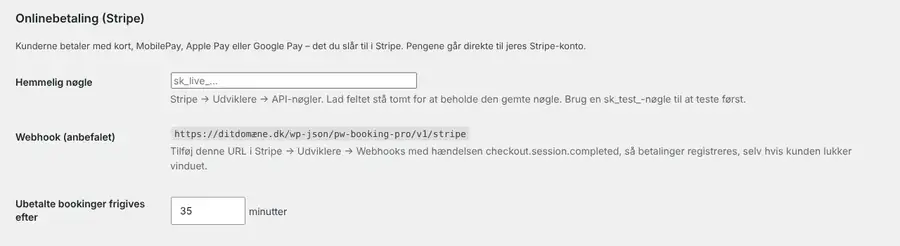
- A spot waiting for payment is held for about 35 minutes. If the client doesn’t pay, the spot becomes free again.
- Bookings paid online can’t be cancelled by the client. The client contacts you, and you refund in Stripe and cancel in the attendee list.
- When the site runs in demo mode, payment only works with a test key.
5. SMS reminders with GatewayAPI
- Create an account at gatewayapi.com and add credit. You pay GatewayAPI directly per SMS.
- Create an API token in GatewayAPI.
- Go to Booking → Pro settings → SMS reminders and paste the token. Choose the region: gatewayapi.eu for EU accounts, otherwise gatewayapi.com.
- Enter a sender name of at most 11 characters, using only A–Z letters, digits and spaces, e.g. Studio Yoga.
- Choose how many hours before the reminder is sent, and whether it applies to classes, appointments and spots from the waiting list.
- Customise the text. You can use {name}, {what}, {date}, {time} and {site}. Keep it under 160 characters so you pay for one SMS.
- Enter your mobile number under Test and save. You’ll get a test SMS.
Reminders are sent automatically every 15 minutes by WordPress’ scheduler. If your website has very little traffic, they may arrive a little late. Your web host can enable a real cron job to fix this.
6. Day to day
Attendee lists and check-in
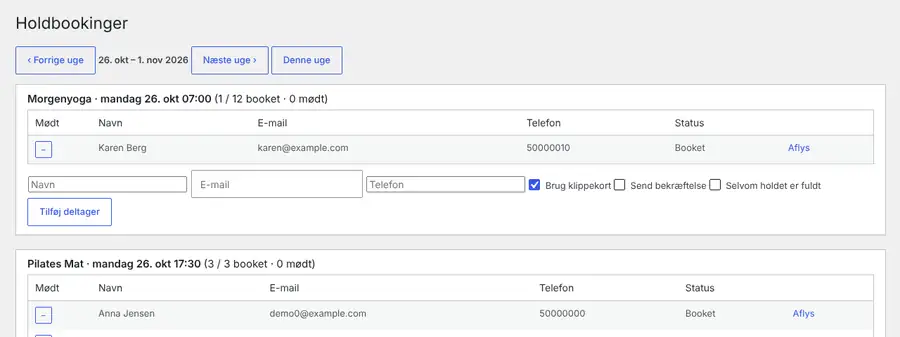
- Booking → Class bookings shows this week’s classes with attendees, the waiting list and how each attendee paid.
- Click the button in the attended column to check an attendee in when they arrive.
- Add an attendee manually at the bottom of each class. Tick Use punch card, Send confirmation or Even if the class is full.
- Cancel emails the client, returns any class to their card and gives the spot to the waiting list.
Cancel a whole class
To cancel a class on a single day, cancel the attendees in Class bookings so they’re notified. Then add the date as a closed day, or set the class to inactive.
Reports
Booking → Reports shows per month:
- how many times each class was held, bookings, occupancy, attendance and cancellations,
- online sales and active memberships.
You can download all class bookings as a CSV file that opens in Excel.
7. Shortcode overview
| Shortcode | Shows | Attributes |
|---|---|---|
[pw_booking] | Booking form for appointments | accent="#colour", font="Font name", services="1,2,3" (only certain services), logo="ID" |
[pw_booking_my_bookings] | The client’s bookings with cancellation | – |
[pw_booking_prices] | Price list (with Pro: also price items and punch cards) | show="services,addons" (Pro: items,services,passes), category="Category" (Pro), accent="#colour" |
[pw_booking_schedule] (Pro) | Class schedule with booking and waiting list | accent="#colour" |
[pw_booking_account] (Pro) | Client page with login, bookings and punch cards | – |
When you use font, the font is loaded from Google Fonts. Mention this in your privacy policy. If you leave out font, your theme’s font is used.
8. If something doesn’t work
- Clients don’t receive emails: install an SMTP plugin, e.g. WP Mail SMTP, and send a test email. Ask clients to check their spam folder.
- The booking form or schedule doesn’t show: check that the shortcode is spelled correctly and is in a Shortcode widget, not a text widget. Clear the cache in your cache plugin.
- Times are wrong: check that the time zone is correct under Settings → General.
- Buttons look wrong: some themes give all buttons their own design. Update to the latest version, or contact us.
- Payment isn’t recorded: check that the webhook is set up in Stripe and that the key is saved under Pro settings.
- SMS doesn’t arrive: send a test SMS from Pro settings. The error message shows what’s wrong, e.g. missing credit.
Need help? Email kontakt@prettywebsites.dk or call +45 26 70 76 94.